Set up Periodic Password Changes for an Extension
Passwords that are kept unchanged for a prolonged period might lead information exploit. Super administrator can set whether to force extension users to change their passwords periodically, thus ensuring account security.
Requirements
The version of PBX server is 84.18.0.102 or later.
Procedure
- Log in to PBX administrator portal with super administrator account, go to .
- Click
 to
edit the desired extension.
to
edit the desired extension. - Under Security tab, scroll down to Login
Security, then configure the following settings.
- Select the checkbox of User must change password periodically.
- In the Password Change Frequency (Day) filed, set
the password validity period in days.
The valid value is 1-365, with a default value 30 indicating that the extension user have to change the password every 30 days.
- Click Save.
Result
Extension users will receive reminders via different methods 3 days and 1
day before the passwords expire. After expiration, they are unable to log
in.
- If extension users have set an email address to receive PBX notifications, the system will send a email Password expiration reminder to notify the users.
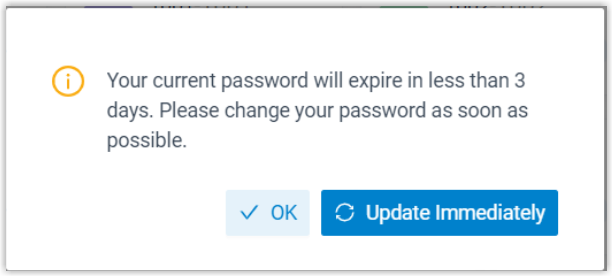
- When extension users log in to Cloud Voice App UC Clients, a pop-up window will
prompt them that the password is about to expire and needs to be
updated.
Note: To achieve this extra login security, extension
users must upgrade their Cloud Voice App UC Clients to the specified version:
- Cloud Voice App Desktop Client: Version 1.11.7 or later
- Cloud Voice App Mobile Client:
- Cloud Voice App iOS client: 5.13.6 or later
- Cloud Voice App Android client: 5.13.8 or later