Allow Users to Log in to Cloud Voice App UC Clients with Red Hat SSO
After synchronizing users from Red Hat SSO to Cloud Voice, you can enable the Single Sign-on (SSO) feature on PBX, allowing Red Hat SSO users to log in to Cloud Voice App clients using their Red Hat credentials.
Prerequisites
Procedure
- Log in to PBX web portal, go to .
- Scroll down to the Single Sign-on (SSO) section, then
turn on the switch.

- Optional: In the Login Method drop-down list,
specify how Red Hat SSO users can log in to Cloud Voice App clients.
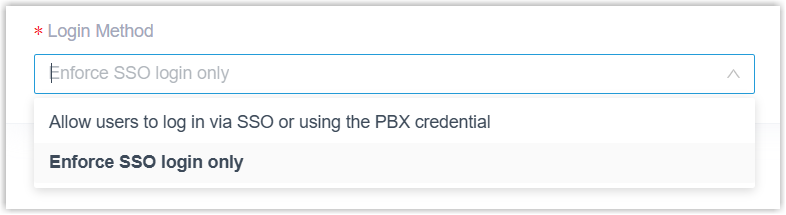
- Allow users to log in via SSO or using the PBX credential: Red Hat SSO users can log in to Cloud Voice App clients via SSO or using the associated extension's account credentials.
- Enforce SSO login only: Red Hat SSO users can
log in to Cloud Voice App clients only via SSO.Note: Red Hat SSO login to Cloud Voice App Mobile Client is currently NOT supported. If you enforce SSO-only login, Red Hat SSO users will NOT be able to sign in to and use Cloud Voice App Mobile Client.
- Click Save.
Result
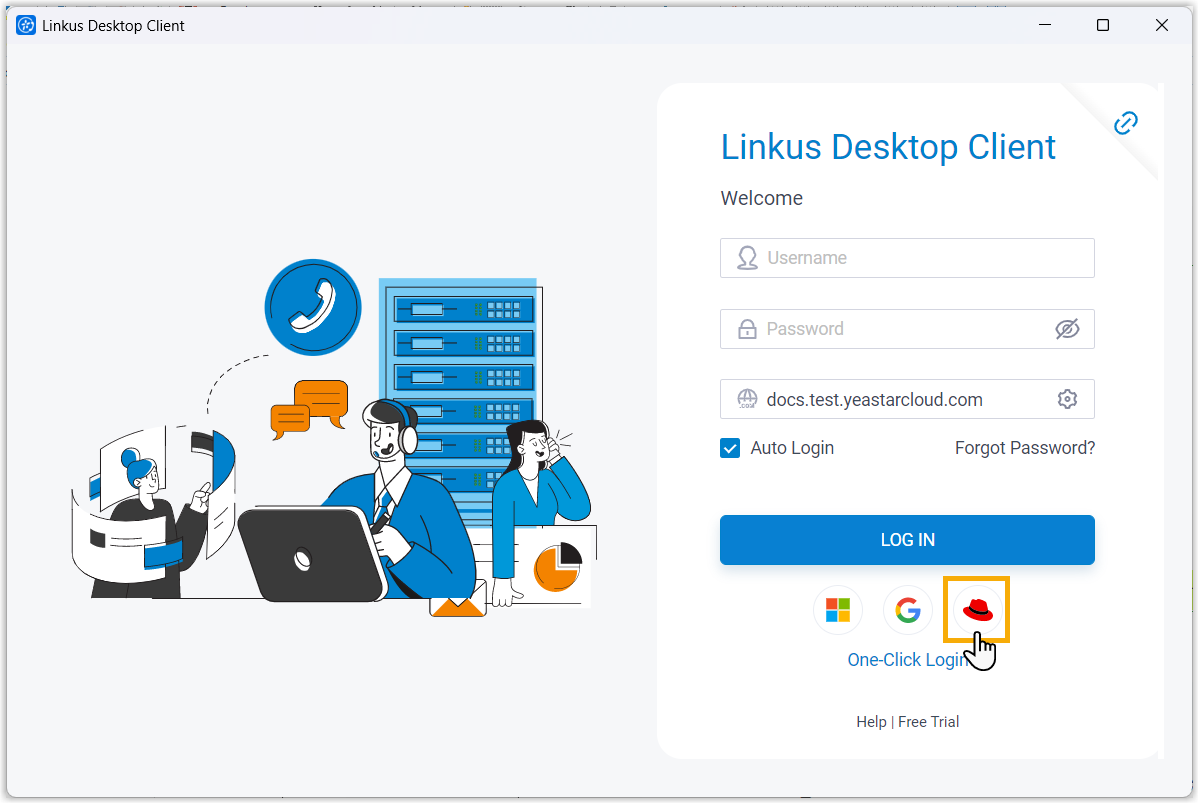
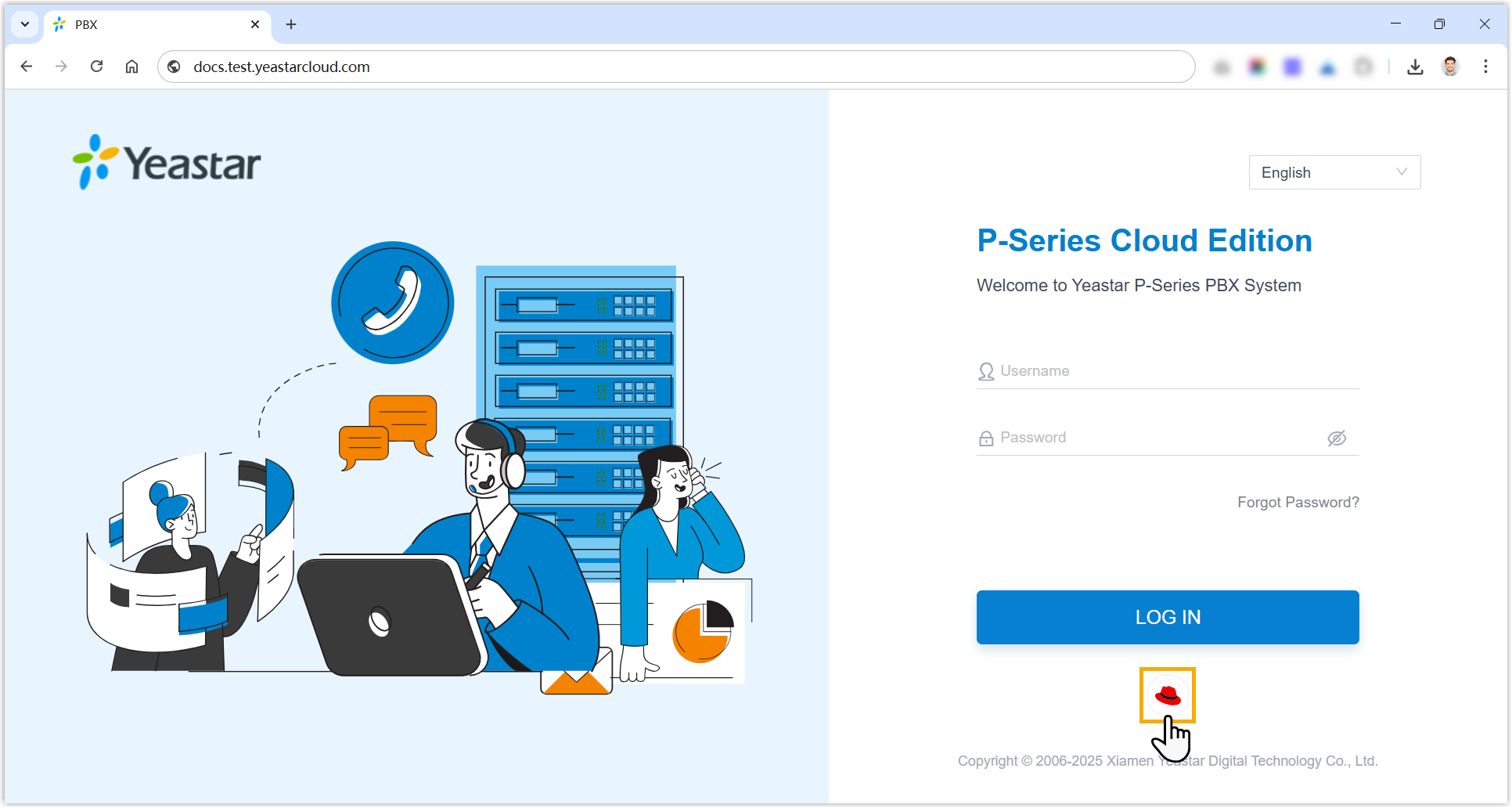
The synced users can directly log in to Cloud Voice App clients using their Red Hat credentials.
What to do next
Instruct users on how to log in to Cloud Voice App clients using their Red Hat credentials.
| Client | Instruction |
|---|---|
| Cloud Voice App Desktop Client |
|
| Cloud Voice App Web Client |
|
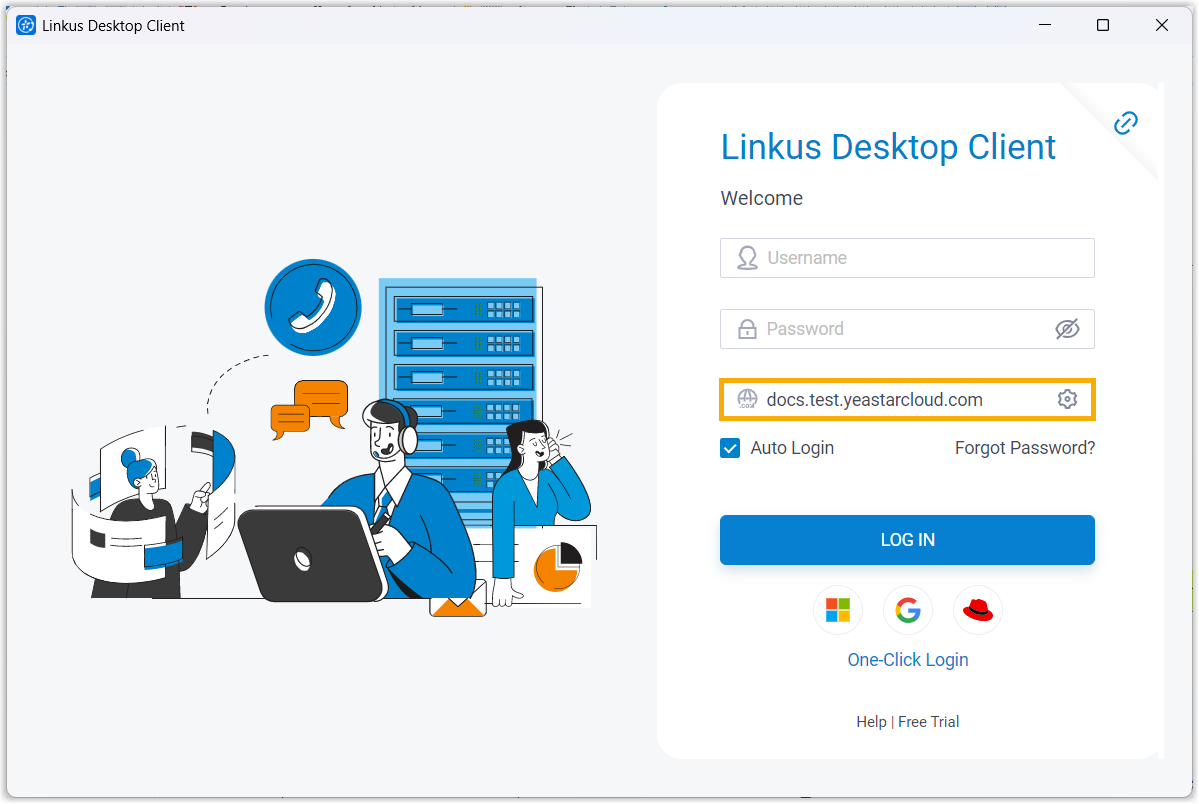
 , and sign in with Red Hat
credentials.
, and sign in with Red Hat
credentials.