Integrate Cloud Voice with Microsoft Teams
The direct integration of Cloud Voice and Microsoft Teams requires each user to install Cloud Voice App for Teams on their own Teams client and log in with their extension accounts or Microsoft accounts. After the integration, Teams users can make, receive, and control calls directly on Teams.
This topic gives an example on how an individual account can integrate Cloud Voice with Microsoft Teams.
Prerequisites
You have obtained the domain name of your Cloud Voice App Web Client.Step 1. Install 'Cloud Voice App for Teams' on Microsoft Teams
- Log in to Microsoft Teams.
- On the left bar, click Apps and search for
Cloud Voice App.
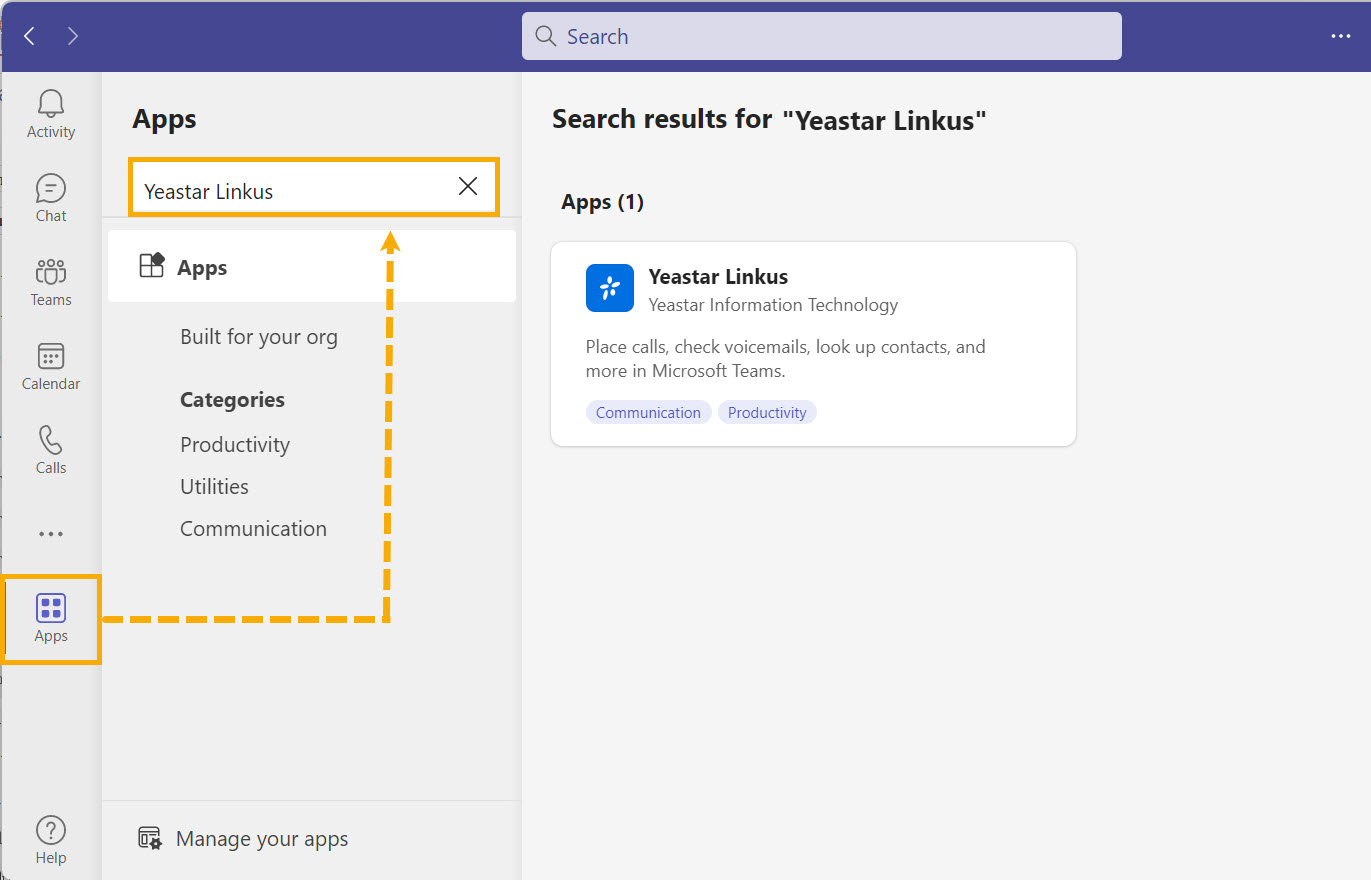
- On the Apps section, select Cloud Voice
Cloud Voice App and click Add.
You are redirected to a tab, where you can access Cloud Voice App Web Client and log in.
Step 2. Access Cloud Voice App Web Client within Teams
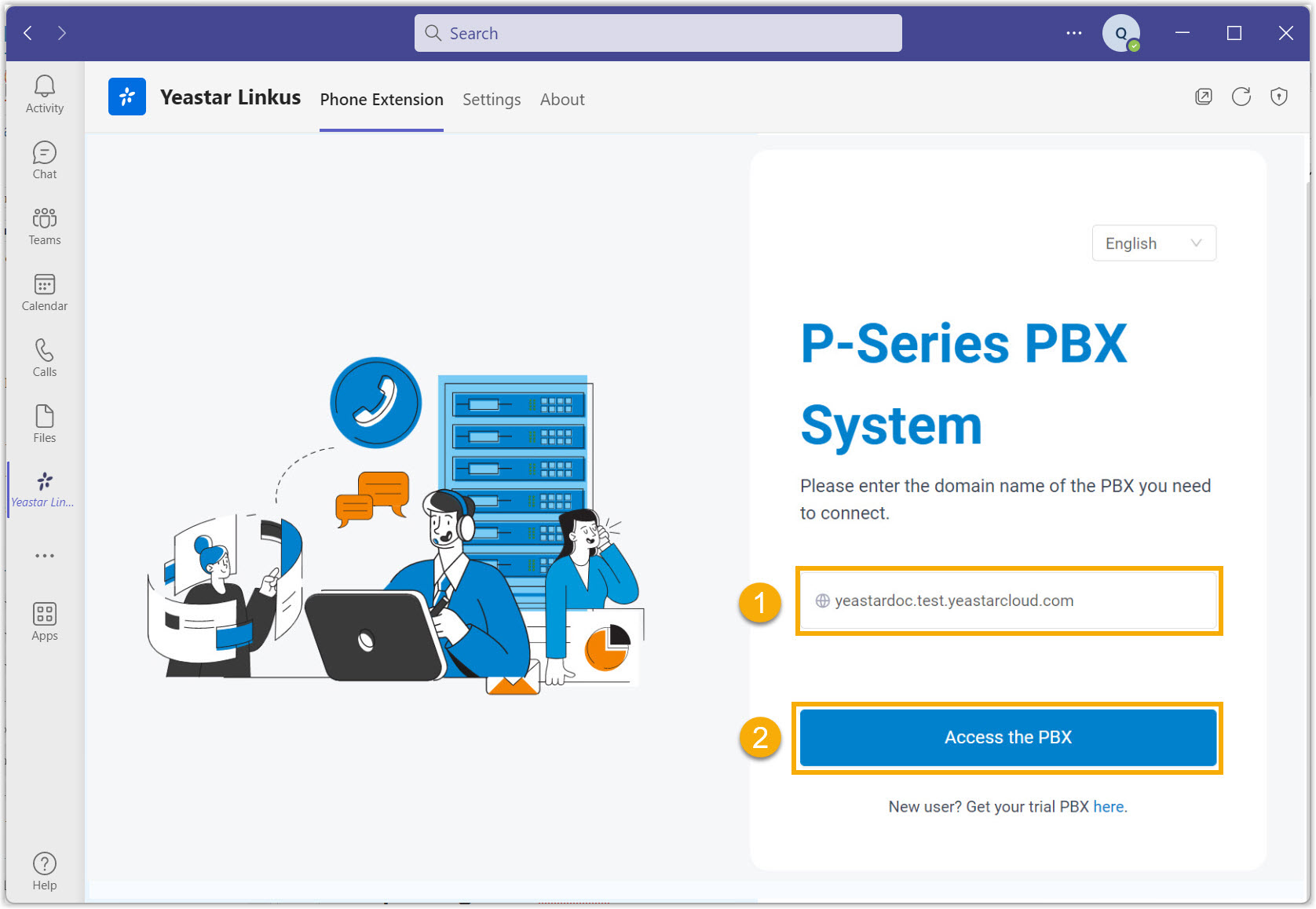
- Under the Phone Extension tab, enter the domain name of your Cloud Voice App Web Client.
- Click Access the PBX.
You are directed to the login page.
Step 3. Log in to Cloud Voice App Web Client within Teams
- Log in with Cloud Voice extension account
-
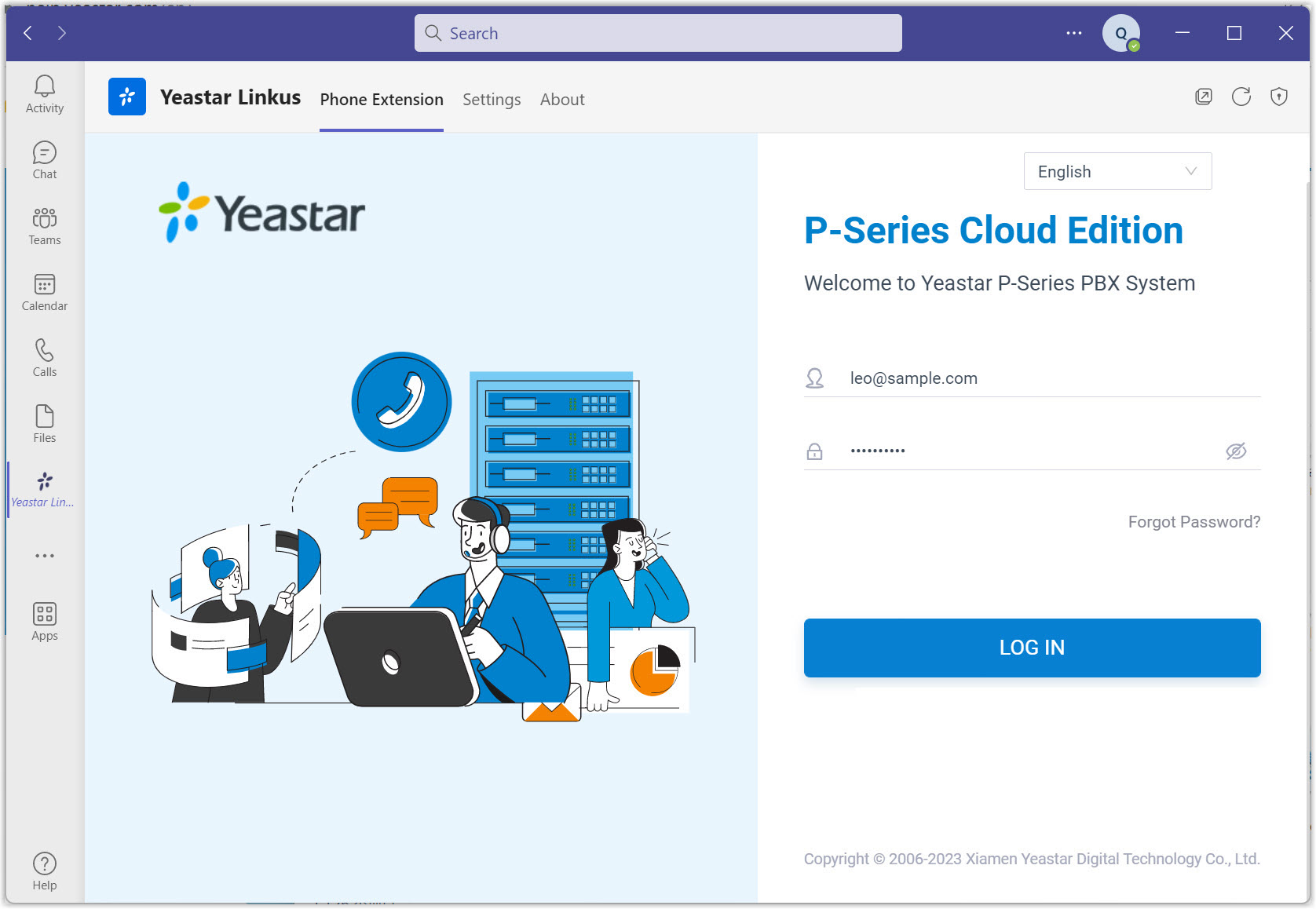
- On the login page, enter the credential of your extension
account, then click LOG IN.
- Username: The email address of your extension account.
- Password: The password of your
extension account.
- If you have set up two-factor authentication, you need to enter
an authentication code.
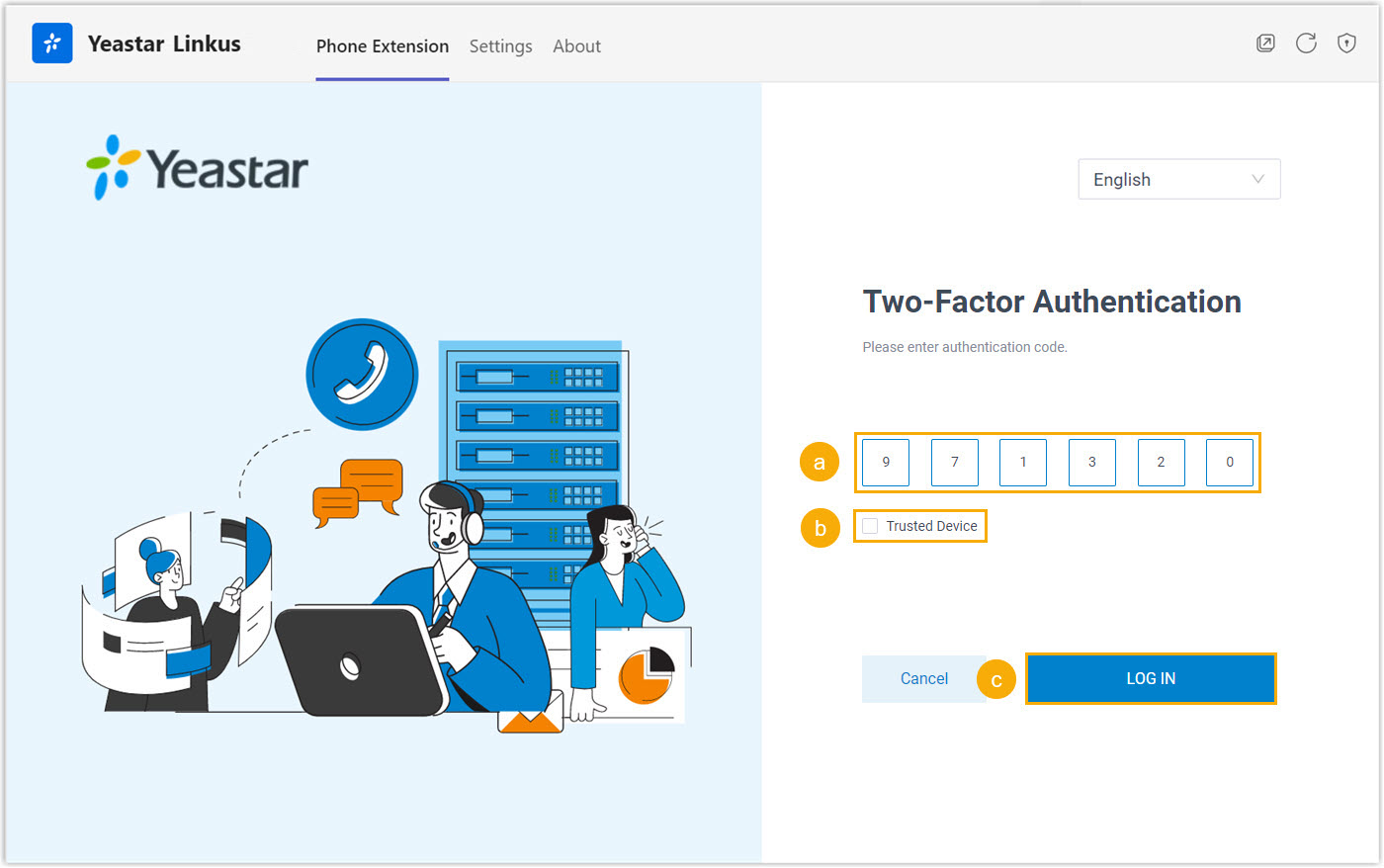
- Enter the authentication code provided by an authenticator application or email.
- Optional: Select the checkbox of
Trusted Device.Note: For the device from which you log in most frequently, you can select the option to add it as a trusted device. In this way, you don't have to re-enter an authentication code with this device for the next 180 days.
- Click LOG IN.
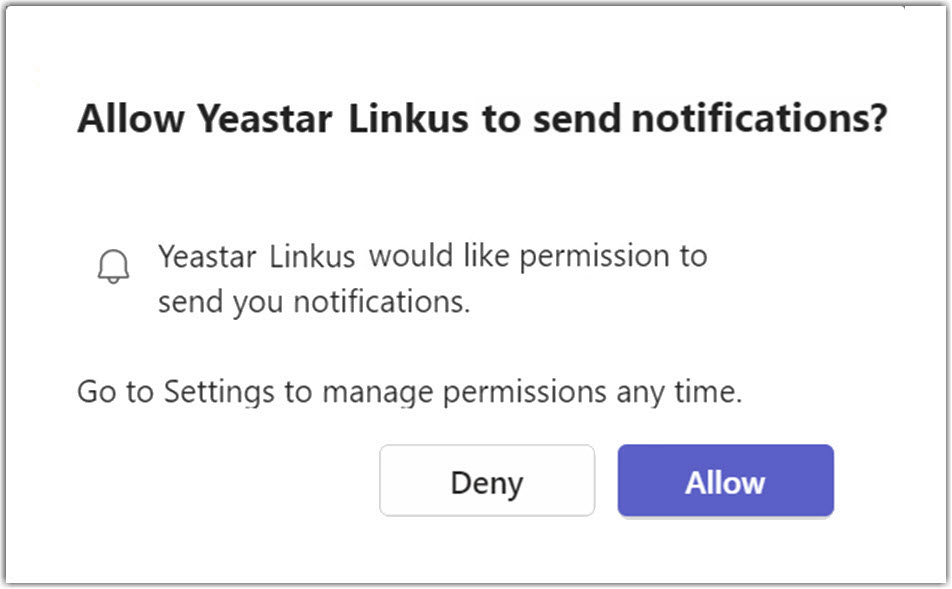
- In the pop-up window, decide
whether to allow Cloud Voice App to send you notifications when
receiving Cloud Voice App chat messages and calls.
- On the login page, enter the credential of your extension
account, then click LOG IN.
- Log in with Microsoft account
-
Important: You can log in with Microsoft account only when the following requirements are met:
- The root domain of your Cloud Voice App Web Client is one of the following: ycmcloud.com, cloud-voicecloud.com, or cloud-voiceycm.co.za.
- The administrator has integrated Cloud Voice PBX with Azure Active Directory and set up Single Sign-on for your Microsoft account.
- On the login page, click Sign in with
Microsoft.
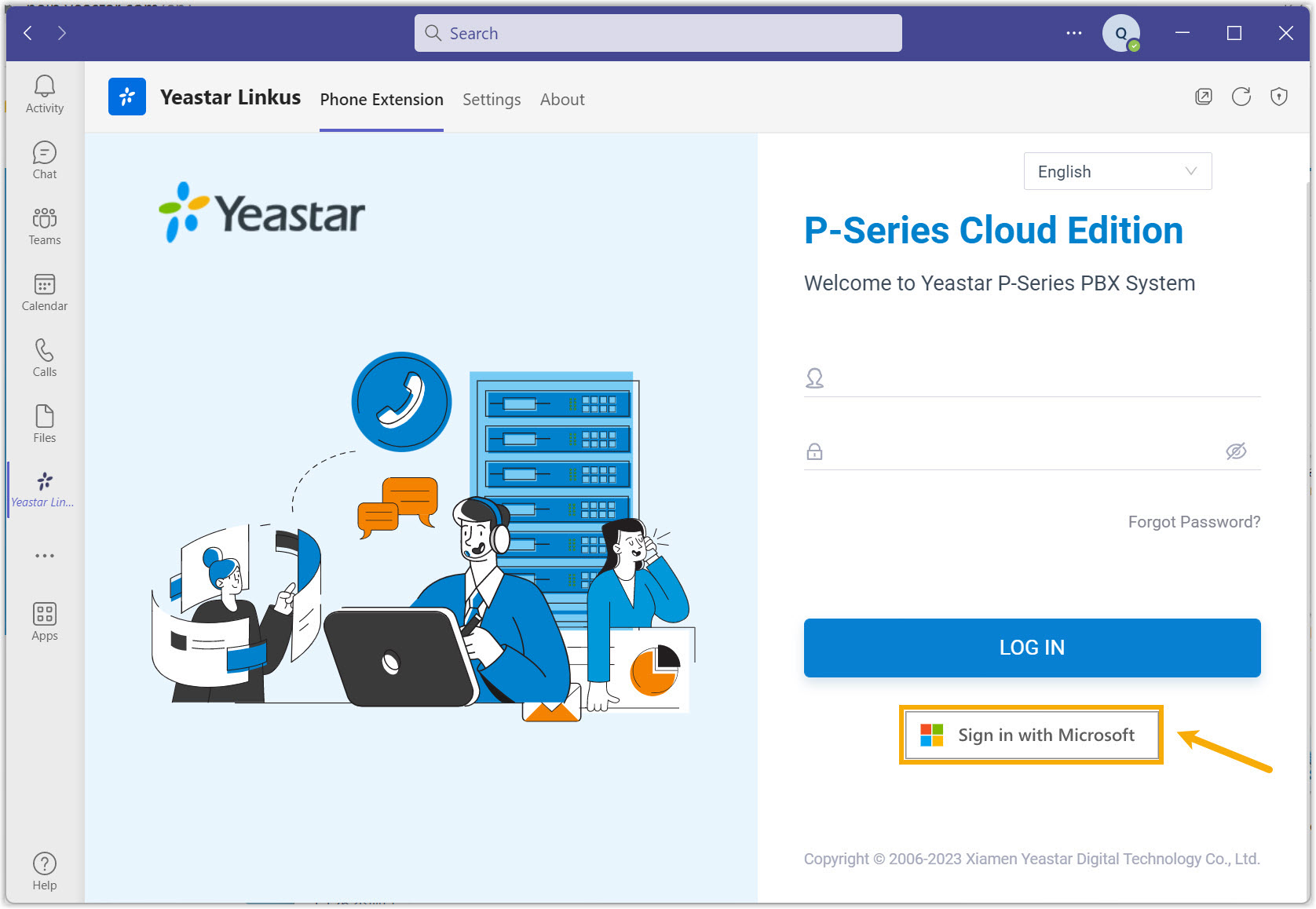
- In the pop-up window, log in with your Microsoft account.
- In the pop-up window, decide
whether to allow Cloud Voice App to send you notifications when
receiving Cloud Voice App chat messages and calls.
Step 4. Set up and select the endpoint to make and receive calls
You can use Cloud Voice App Web Client, Cloud Voice App Desktop Client, or IP Phone as calling endpoint by enabling CTI control over these endpoints. In this way, you can control calls in Teams, while calls are made and received from the selected endpoint.
| Scenario | Instruction |
|---|---|
| Use Cloud Voice App Web Client as calling endpoint |
|
| Use Cloud Voice App Desktop Client as calling endpoint |
|
| Use IP Phone as calling endpoint |
|
 to open and
access Cloud Voice App Web Client.
to open and
access Cloud Voice App Web Client.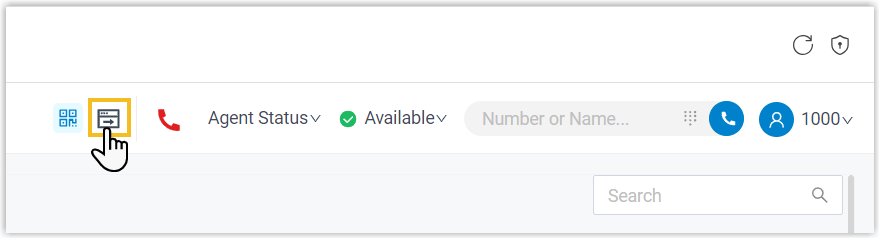
 is changed to
 , indicating
that you can now control Cloud Voice App Web Client via CTI
and use it for calls.
, indicating
that you can now control Cloud Voice App Web Client via CTI
and use it for calls.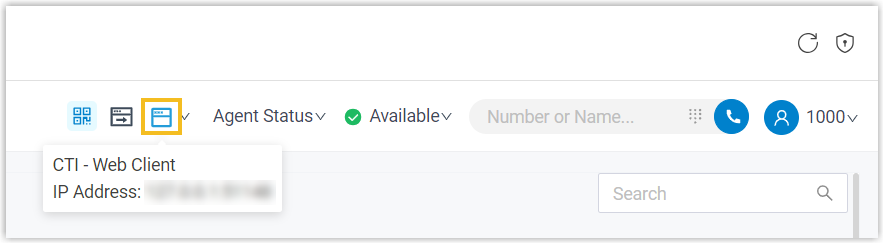
 , indicating that you can
now control Cloud Voice App Desktop Client via CTI and use it
for calls.
, indicating that you can
now control Cloud Voice App Desktop Client via CTI and use it
for calls.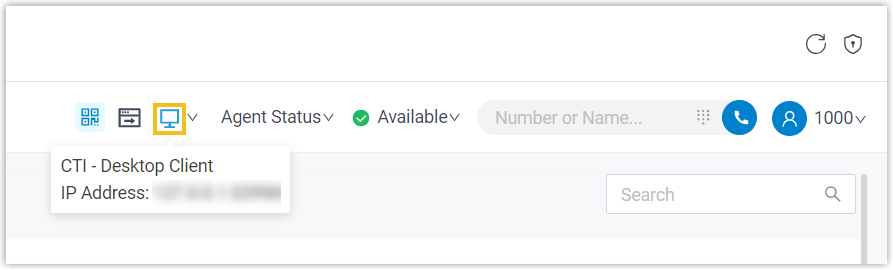
 , indicating that you can
now control IP phone via CTI and use it for
calls.
, indicating that you can
now control IP phone via CTI and use it for
calls.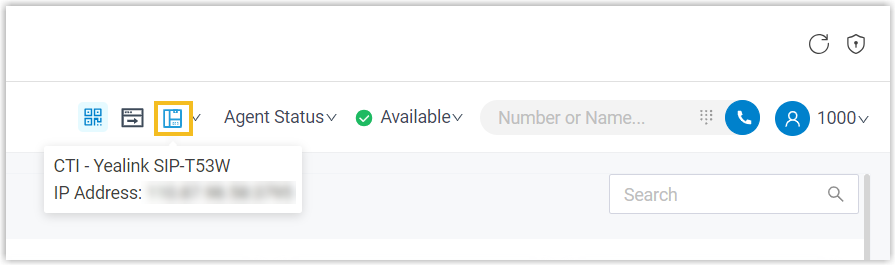
(Optional) Step 5. Pin Cloud Voice App
You can pin Cloud Voice App to your Teams navigation bar for easy access.
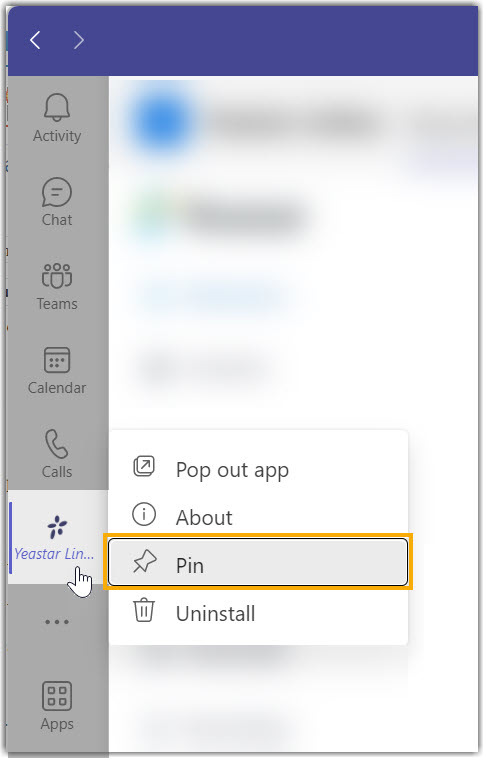
- On the left bar, right click Cloud Voice App.
- In the pop-up window, click Pin.
Cloud Voice App is pinned to the left bar of your Teams client.
Result
You can now make and receive internal or external calls within Microsoft Teams through the PBX.