Manage Voicemails
This topic describes how to check and manage your voicemails in the 'Cloud Voice App for Dynamics 365' plugin.
Procedure
- On the plugin, go to Voicemails.
- Optional: Search or filter the desired voicemails.
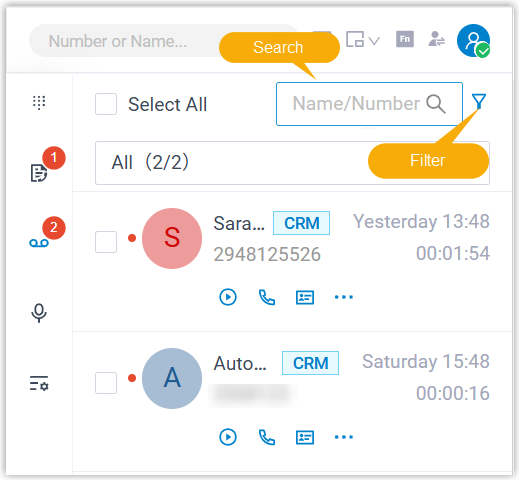
- Check and manage the voicemails according to your needs.
Operation Instruction Listen to a voicemail Click  of the
voicemail.
of the
voicemail.An unread voicemail will be marked as read.
Place a call Place a call from voicemail via either of the following methods:
- Double click a record.
- Click
 of the voicemail.
View the information of the Dynamics contact Click  of the
voicemail.
of the
voicemail.The contact details page opens in the main area of Dynamics 365.
Download a voicemail To download a voicemail, do as follows: - Click
 of the
voicemail.
of the
voicemail. - Select Download.
The voicemail is downloaded to your computer.
Change the read status - To mark a voicemail as read or unread, do as
follows:
- Click of the
voicemail.
- Click Mark as Read or Mark as unread.
- Click
- To bulk mark voicemails as read, do as
follows:
- Select the checkboxes of the desired records.
- At the top-right corner, click
 .
.
Delete voicemail(s) - To delete a voicemail, do as follows:
- Click of the
voicemail.
- Select Delete.
- Click
- To bulk delete voicemails, do as follows:
- Select the checkboxes of the desired records.
- At the top-right corner, click
 .
.