Log in to Cloud Voice App within Dynamics 365 CRM
After the administrator has completed the Dynamics 365 CRM integration, users can access and use the 'Cloud Voice App for Dynamics 365' plugin directly within the Dynamics 365 interface, enabling seamless access to essential PBX communication functions without switching systems. This topic describes how to access and log in to the plugin.
Prerequisites
- System administrator has completed the integration of Cloud Voice and Microsoft Dynamics 365.
- According to the login method you will use, contact the system administrator
to obtain your login credentials or confirm that your extension account is
ready on the PBX.
Login Method Prerequisites Log in using extension credential Obtain the username and password of your extension account from system administrator. Log in with Google account System Administrator has integrated the PBX with Google Workspace and complete the following settings: - Synchronize your Google account to the PBX and associate with an extension.
- Enable Single Sign-on (SSO) feature.
Log in with Microsoft account System Administrator has integrated the PBX with Microsoft Entra ID (Azure Active Directory) and complete the following settings: - Synchronize your Microsoft account to the PBX and associate with an extension.
- Enable Single Sign-on (SSO) feature.
Log in with Active Directory account System Administrator has integrated the PBX with Active Directory, and complete the following settings: - Synchronize your Active Directory account to the PBX and associate with an extension.
- Enable Single Sign-on (SSO) feature.
- It is recommended to use Google Chrome, Microsoft Edge, or Opera browser for optimal performance.
Procedure
- Log in to Dynamics 365 instance (e.g.
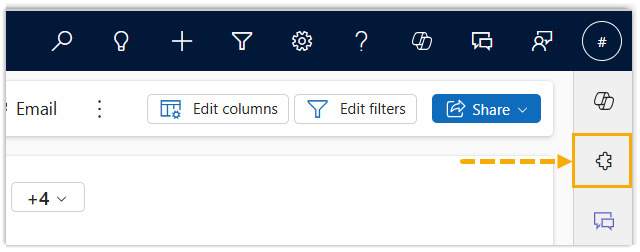
https://{{your-organization}}.crm.dynamics.com).Note: Replace your-organization with your actual domain name. - At the right side of the Dynamics 365 interface, click
 .
.
The 'Cloud Voice App for Dynamics 365' plugin is displayed as a fixed side pane.
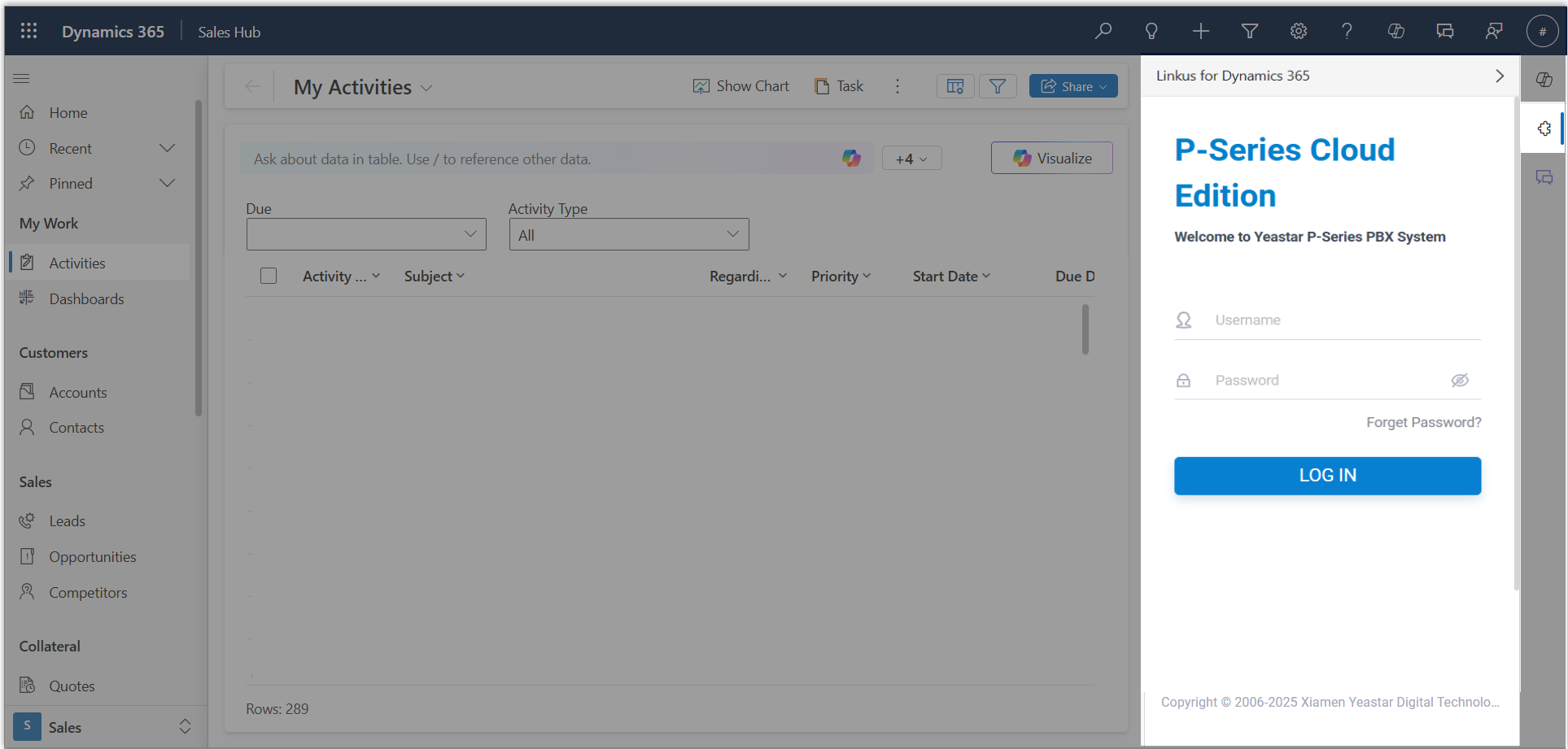
- Log in to Cloud Voice App via any of the following methods:
Login Method Instruction Log in using extension credential - On the login page, enter the credential of
your extension account.
- Username: The email address of the extension account.
- Password: Enter the password associated with the user name.
- Click LOG IN.
- If you have set up two-factor authentication
for your account, enter the authentication code,
then click LOG IN.Note: For the device from which you log in most frequently, you can enable the option Trusted Devices to add it as a trusted device. In this way, you don't have to re-enter an authentication code with this device for the next 180 days.
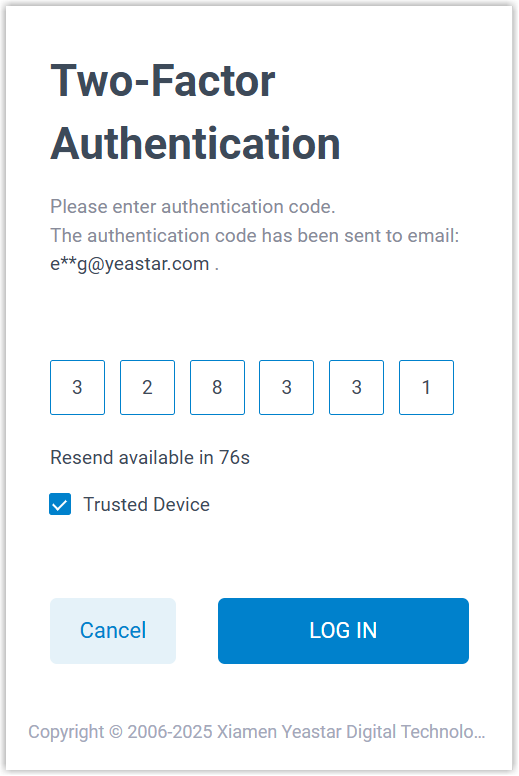
Log in with Google account - On the login page, click
 .
. - Sign in to your Google account.
After signed-in, you are automatically logged in to Cloud Voice App.
Log in with Microsoft account - On Cloud Voice App login page, click
 .
. - Sign in to your Microsoft account.
After signed-in, you are automatically logged in to Cloud Voice App.
Log in with Active Directory account - On Cloud Voice App login page, enter the following
information.
- Username: Enter the
user name of your AD domain account
(Format:
username@domainname). - Password: Enter the password associated with the user name.
- Username: Enter the
user name of your AD domain account
(Format:
- Click LOG IN.
- On the login page, enter the credential of
your extension account.
Result
You have successfully logged in to the plugin and can now use various PBX calling features directly within the Dynamics 365 CRM interface.
For more information about the plugin layout, see Learn about the 'Cloud Voice App for Dynamics 365' Plugin.