Connect Cloud Voice and Cloud Voice TA810 Gateway
This topic describes how to connect Cloud Voice and Cloud Voice TA810 gateway, so as to extend 8 FXO trunks on the PBX.
Requirement
The version of Cloud Voice is 84.10.0.30 or later.
Procedure
Step 1. Create a SIP account trunk on Cloud Voice
- Log in to PBX web portal, go to , click Add.
- In the Basic section, complete the following
settings.

- Name: Enter a name to help you identify it. For example, Connect-to-TA810-Gateway.
- Trunk Status: Select Enabled.
- Select ITSP Template: Select General.
-
In the Detailed Configuration section, complete the following settings.
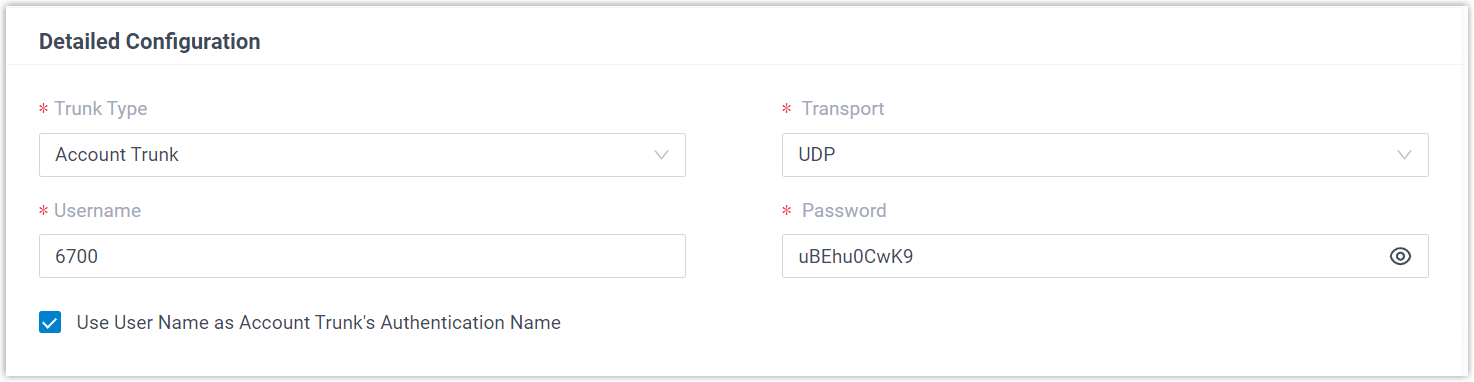
- Trunk Type: Select Account Trunk.
- Transport: Select UDP.
- Username: Specify a username for the
trunk.Note: The username is regarded as the trunk number.
- Password: Specify a password that is associated with the username.
- Use User Name as Account Trunk's Authentication Name: Enable this option to use the trunk's username for authentication.
- Click Save and Apply.
Step 2. Create a SIP register trunk on Cloud Voice TA810 Gateway
- Log in to gateway web interface, go to , click Add New Trunk.
- In the pop-up window, configure the following
settings:
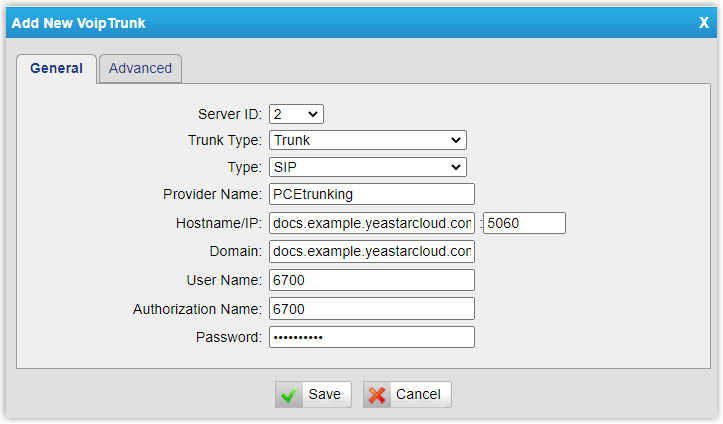
- Trunk Type: Select Trunk.
- Type: Select SIP.
- Provider Name: Specify a name to help you identify it.
- Hostname/IP: Enter the domain name and SIP port of Cloud Voice. In this example, enter docs.example.cloud-voicecloud.com and the default SIP port 5060.
- Domain: Enter the domain name of Cloud Voice. In this example, enter docs.example.cloud-voicecloud.com.
- User Name: Enter the username provided by Cloud Voice. In this example, enter 6700.
- Authorization Name: Enter the username provided by Cloud Voice. In this example, enter 6700.
- Password: Enter the password provided by Cloud Voice.
- Click Save and Apply Changes.
Result
- On the PBX web
portal, go to to check the trunk status. If the connection is successful,
the trunk status displays
 .
. - On the gateway web interface, go to to check the trunk status. If the connection is successful, the trunk status displays "Registered".
It is concluded that Cloud Voice is connected to Cloud Voice TA810 gateway; 8 FXO trunks are extended on Cloud Voice.
What to do next
- To make outbound calls through the extended FXO trunk, see Make Outbound Calls through the Extended FXO Trunks.
- To receive inbound calls through the extended FXO trunk, see Receive Inbound Calls through the Extended FXO trunks.