Integrate Cloud Voice with Bitrix24 CRM
This topic describes how to integrate Cloud Voice with Bitrix24 CRM via Bitrix24 REST API (webhook).
Requirements
Before you begin, make sure that your Bitrix24 and Cloud Voice meet
the following requirements:
- Bitrix24
-
- Version: Use Bitrix24 Cloud Edition with any of
the following plans subscribed:
- Basic
- Standard
- Professional
- Enterprise
- Account: Use Main Administrator account for integration.
- Version: Use Bitrix24 Cloud Edition with any of
the following plans subscribed:
- PBX server
-
- Firmware: Version 84.21.0.66 or later.
Procedure
Step 1. Create an inbound webhook on Bitrix24
Create an inbound webhook on Bitrix24 to allow Cloud Voice to access your Bitrix24 via API.
- Log in to your Bitrix24 with Main Administrator account.
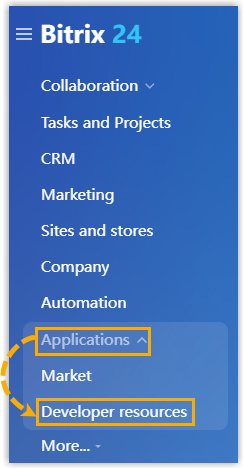
- On the left navigation bar, click .
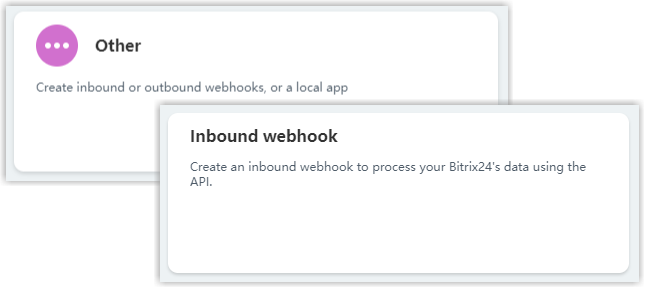
- Under Common use cases tab, click
Other, then click Inbound
webhook.
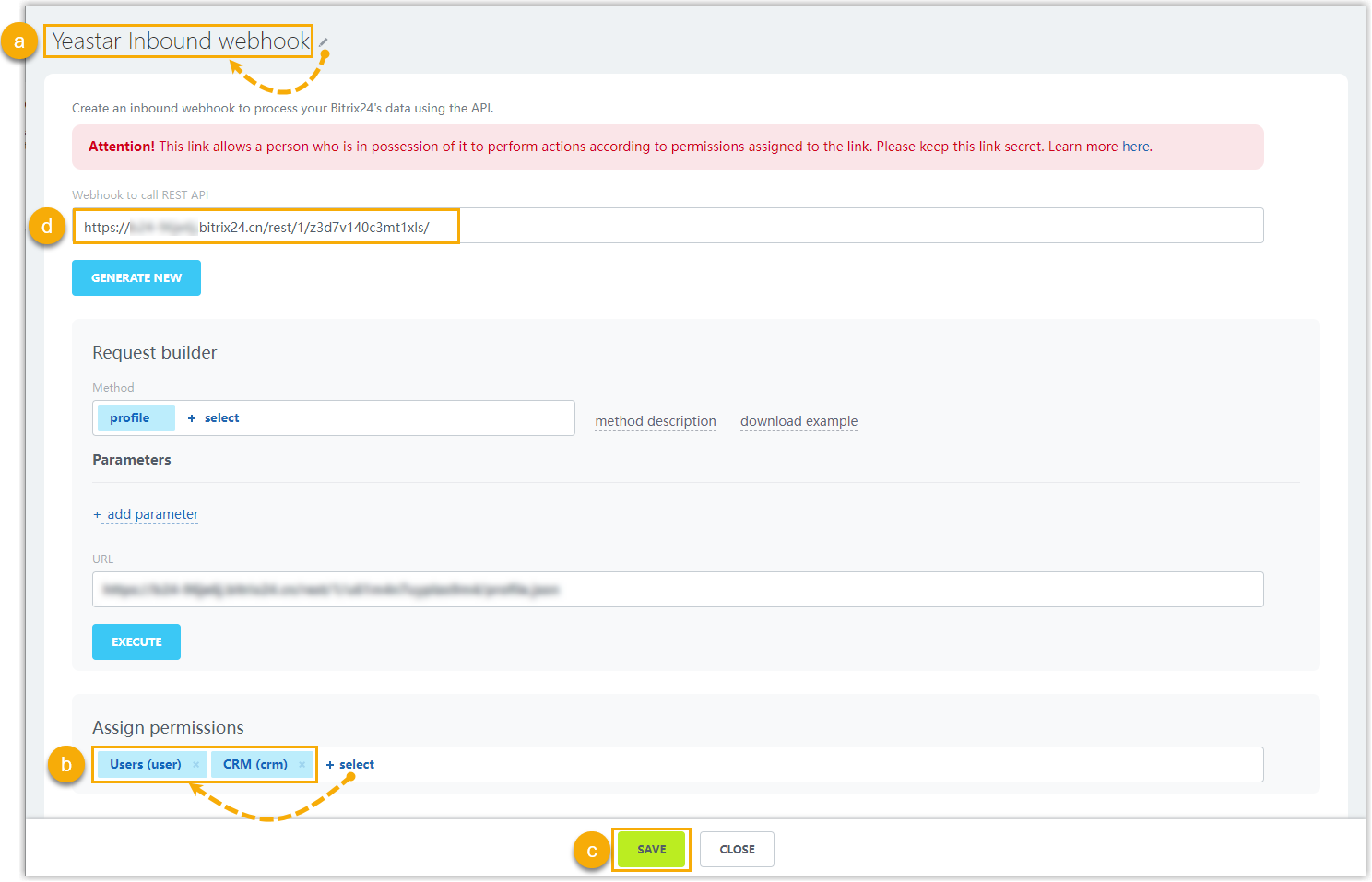
- On the configuration page, create an inbound webhook as follows:
- Click
 to edit the inbound webhook
name. In this example, enter Cloud Voice Inbound
webhook.
to edit the inbound webhook
name. In this example, enter Cloud Voice Inbound
webhook. - In the Assign permissions section, click + select, then select Users (user) and CRM (crm).
- Click Save.
- Copy the URL in the Webhook to call REST
API field, which will be used on Cloud Voice PBX for the
integration.Tip: In future use, if you want to update the webhook, you can proceed on .
- Click
Step 2. Connect Cloud Voice and Bitrix24 CRM
On Cloud Voice, enter the domain name and inbound webhook URL obtained from Bitrix24 to connect to the CRM.
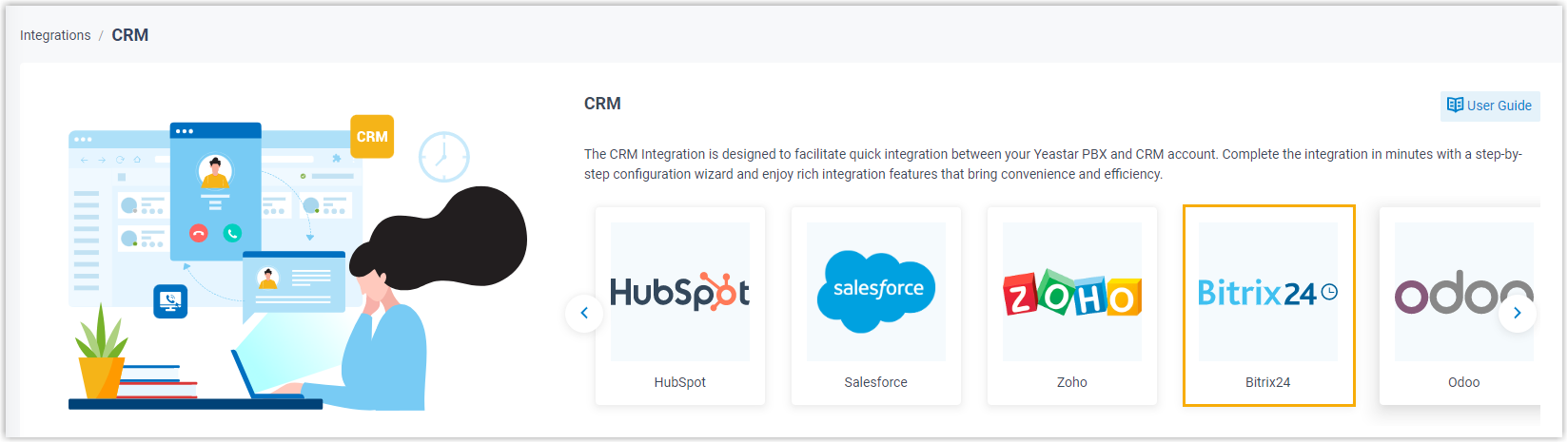
- Log in to PBX web portal, go to .
- Click Bitrix24.
- In the Inbound Webhook URL field, enter the URL that you have
obtained from Bitrix24.

- In the Your Bitrix24 Address field, enter the domain
name of your Bitrix24.

- Click Save.
If the authentication succeeds, a pop-up window will be shown as below.
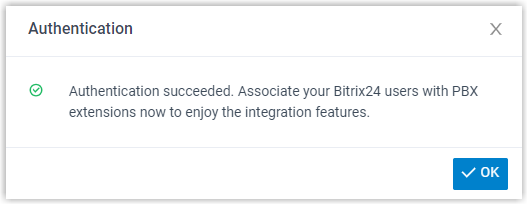
- Click OK to confirm.
The Status field displays Connected, indicating that Cloud Voice is connected to Bitrix24 CRM successfully.

Step 3. Associate Bitrix24 users with PBX extensions on Cloud Voice
- On the CRM integration page of PBX, click
 beside Bitrix24
User to obtain the latest list of Bitrix24 users.
beside Bitrix24
User to obtain the latest list of Bitrix24 users.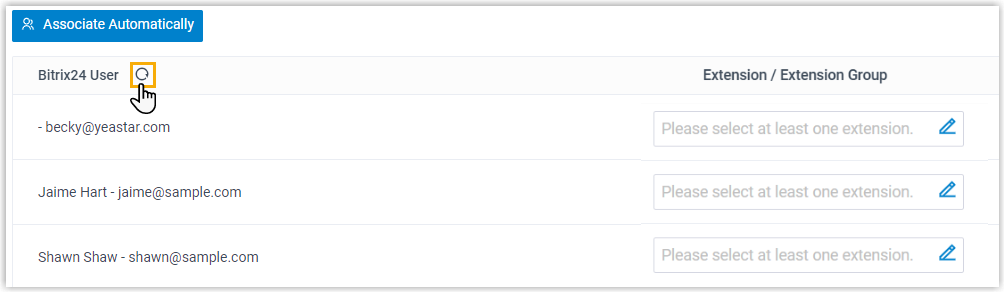
- Associate Bitrix24 users with PBX extensions.
- Associate automatically
- If users bind the same email address to their Bitrix24 accounts and PBX extensions, you can implement automatic association of their Bitrix24 accounts and PBX extensions as follows:
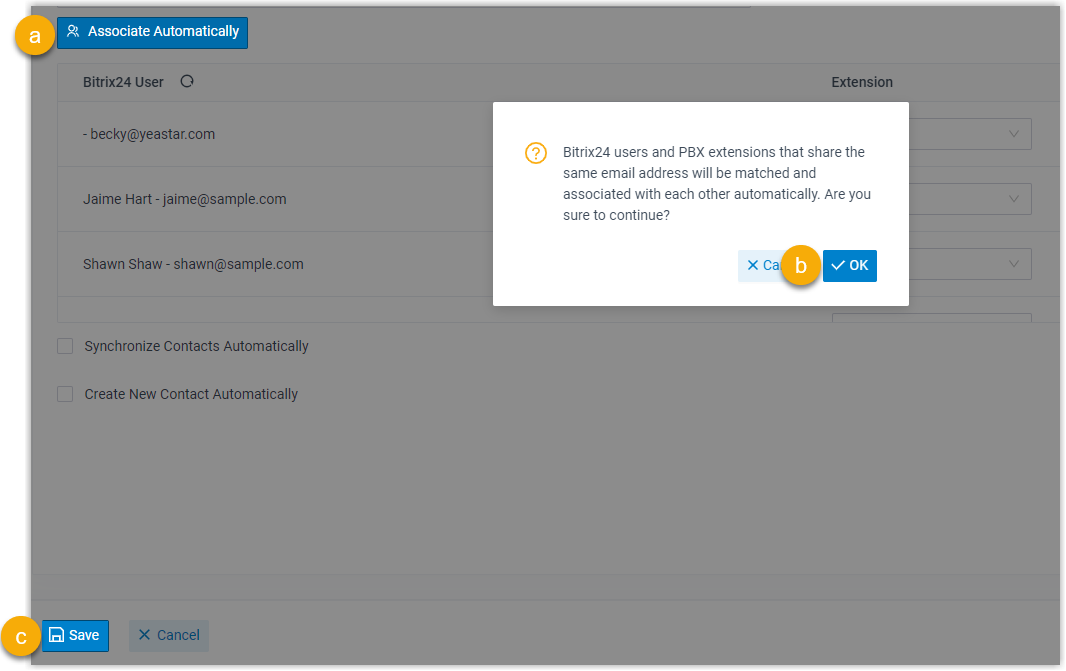
- Associate manually
- If users bind different email addresses to their Bitrix24 accounts and PBX extensions, you need to manually associate these users' Bitrix24 accounts and PBX extensions as follows.
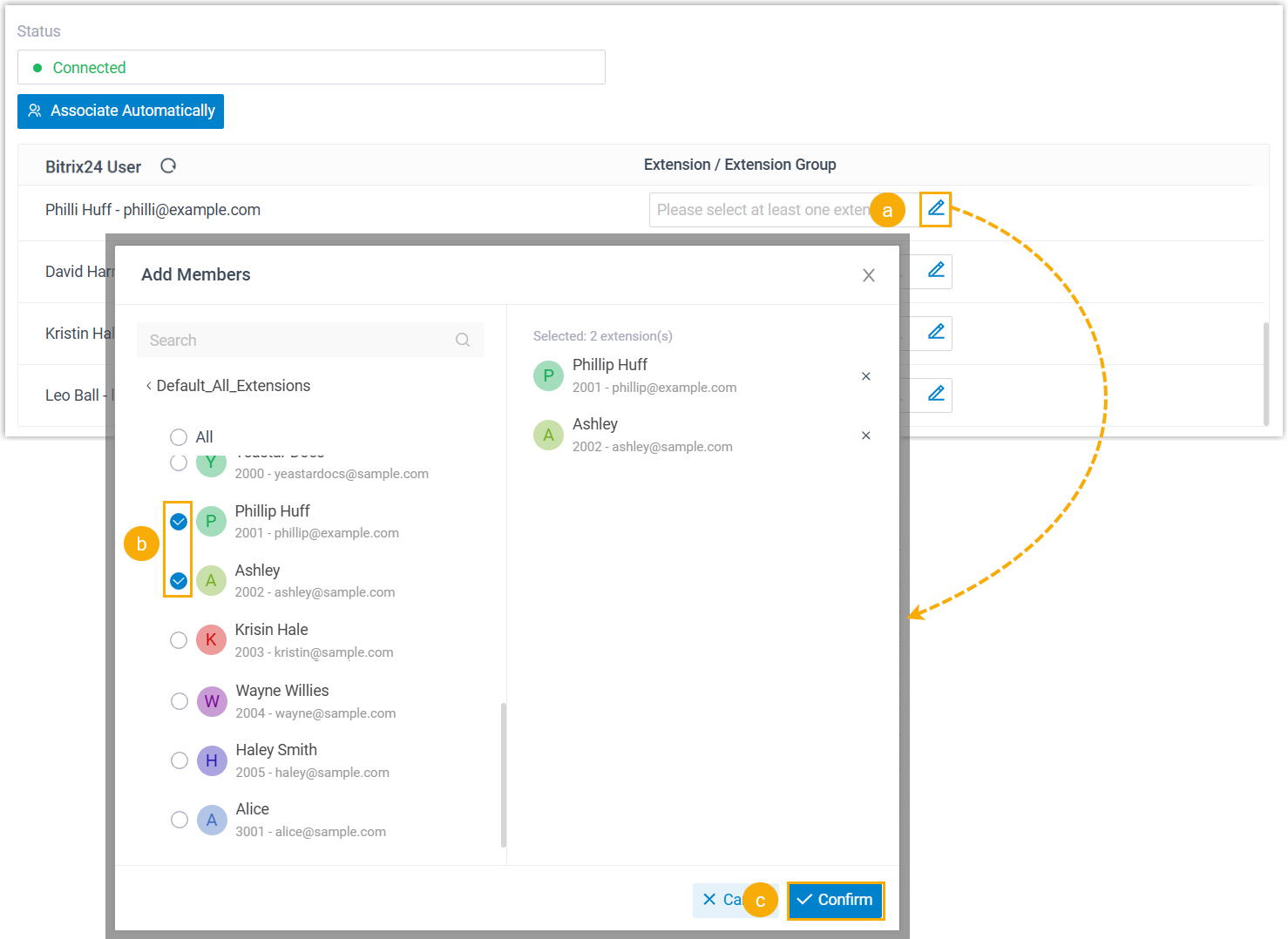
-
- In the Extension / Extension
Group field beside the Bitrix24 user,
click
 .
. - In the pop-up window, select the desired user's extension(s).
- Click Confirm.
- Click Save.
- In the Extension / Extension
Group field beside the Bitrix24 user,
click
Result
- The integration of Cloud Voice and Bitrix24 CRM is set up.
- The associated Bitrix24 users can make or receive calls with their PBX extensions.