Monitor Specific Pause Status of an Agent by Function Key
This topic provides an example on how to monitor specific pause status of an agent by function key on Cloud Voice App Web Client, Cloud Voice App Desktop Client, or on an IP phone.
Prerequisites
- Obtain the following feature codes:
- Pause feature code (Path: )
- Pause Reason feature code (Path: )
- To monitor specific agent pause status on an IP phone, make sure that the IP
phone is connected to Cloud Voice via auto provisioning, and
has been assigned with an extension.Note: For detailed instructions about auto provisioning the IP phone, see IP Phone Configuration Guide.
Procedure
Assume that you want to monitor the three default pause status of agents 1001, 1002 and 1003 in queue 6400, do as follows to configure function keys for your extension.
- Set up function keys for monitoring specific pause status.
- Log in to PBX web portal, go to , edit your extension.
- Click the Function Keys tab.
- Configure the following function keys.
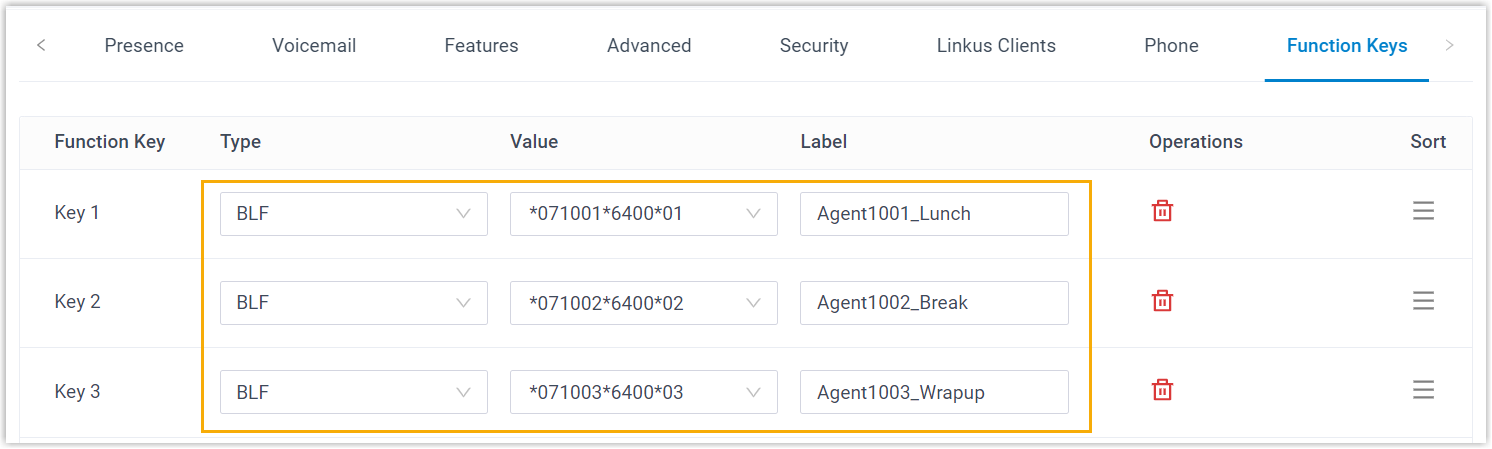
- Type: Select BLF key.
- Value: Enter the feature codes.
The format should be
Pause feature code+extension number+*+queue number+pause reason feature code. For example,*071001*6400*01. - Label: Optional. Enter a display label for the function key.
- Click Save.
- If you want to monitor specific agent pause status on IP phone, apply the
function key configuration to the IP phone.
- Go to , click
 beside the desired phone.
 - In the pop-up window, click OK.
- Go to , click
Result
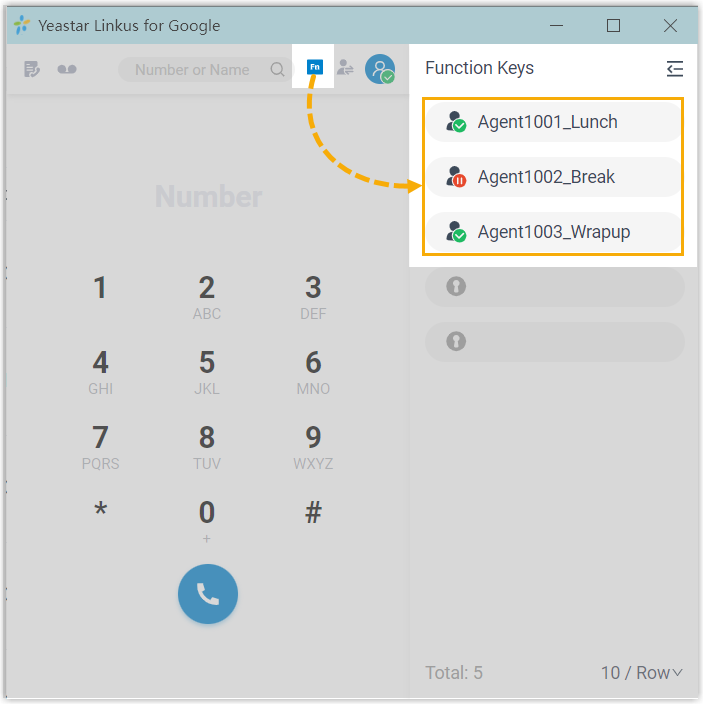
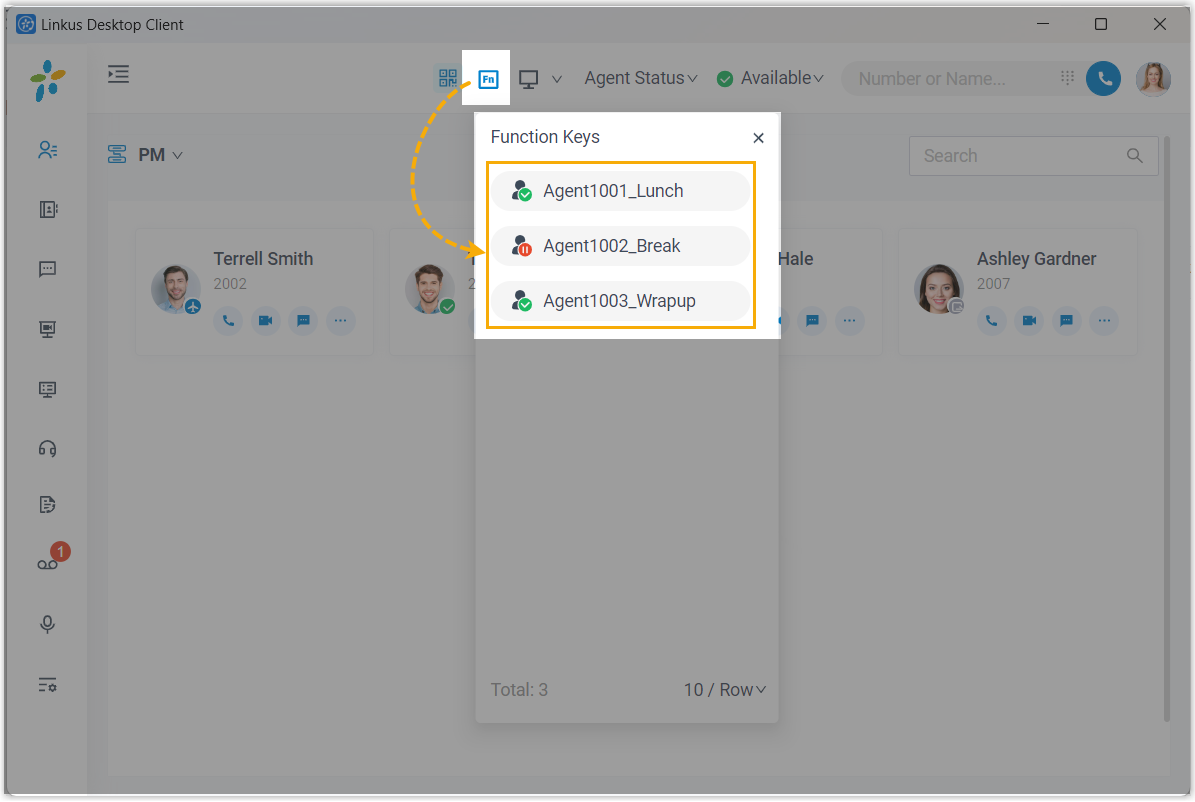
- Function key on Cloud Voice App Web Client, Cloud Voice App Chrome extension, and Cloud Voice App Desktop Client
-
 : The monitored agent is NOT in the
specified pause status.
: The monitored agent is NOT in the
specified pause status. : The monitored agent is in the
specified pause status.
: The monitored agent is in the
specified pause status.  : The function key
configuration failed.
: The function key
configuration failed.
-
Cloud Voice App Web Client 'Cloud Voice App for Google' Chrome extension Cloud Voice App Desktop Client 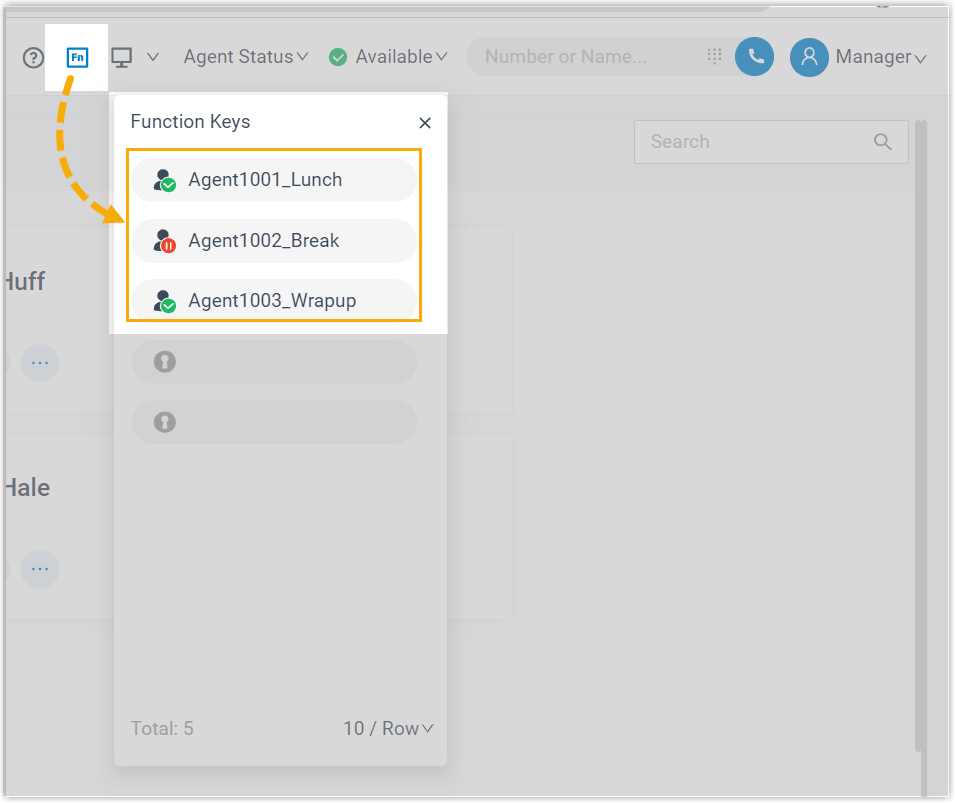
- BLF LED on IP phone
-
- BLF LED Solid Green: The monitored agent is NOT in the specified pause status.
- BLF LED Flashing Red: The agent is in the specified pause status.
- BLF LED off: The BLF key configuration failed.