Access Operator Panel
The Operator Panel is integrated with Cloud Voice App Web Client and Cloud Voice App Desktop Client. This topic describes how to access Operator Panel.
Requirements
- PBX server: 84.18.0.59 or later
- Cloud Voice App Desktop Client: 1.10.2 or later
Prerequisites
-
Cloud Voice App Web client or Cloud Voice App Desktop Client is enabled.
- Make sure that you have the permission to access Operator Panel.
- Get username and password from your system administrator, as well as the server's network information (domain name or IP addresses and ports).
Procedure
- Log in to Cloud Voice App Web Client
or
Cloud Voice App Desktop Client.
- Log in to Cloud Voice App Web Client
-
Tip: If you have received a Cloud Voice App welcome email, you can click the login link for Cloud Voice App Web Client to quickly log in.
- Launch your web browser, enter thedomain of Cloud Voice App Web Client, press Enter.
- Enter your username and password, then click
LOG IN.
- Username: Extension number or email address.
- Password: Extension User Password.
- Log in to Cloud Voice App Desktop Client
-
Tip: If you have received a Cloud Voice App welcome email, you can use the login link to quickly log in to Cloud Voice App Desktop Client.
- Open Cloud Voice App Desktop Client.
- Enter the login information, then click LOG
IN.
- Username: Extension number or email address.
- Password: Extension User Password.
- Domain: Enter the domain
name or click
 to
enter the IP addresses and ports.
to
enter the IP addresses and ports.
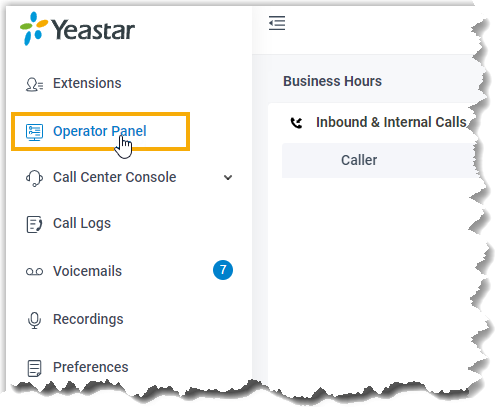
- In the left navigation bar, click Operator
Panel.