View and Manage Guest Stay History
Guest Stay History provides quick information on the visits of guests. This topic describes how front desk can view, download, and delete guest stay histories.
Restriction
View guest stay history
Log in to Cloud Voice App Desktop/Web Client, go to .
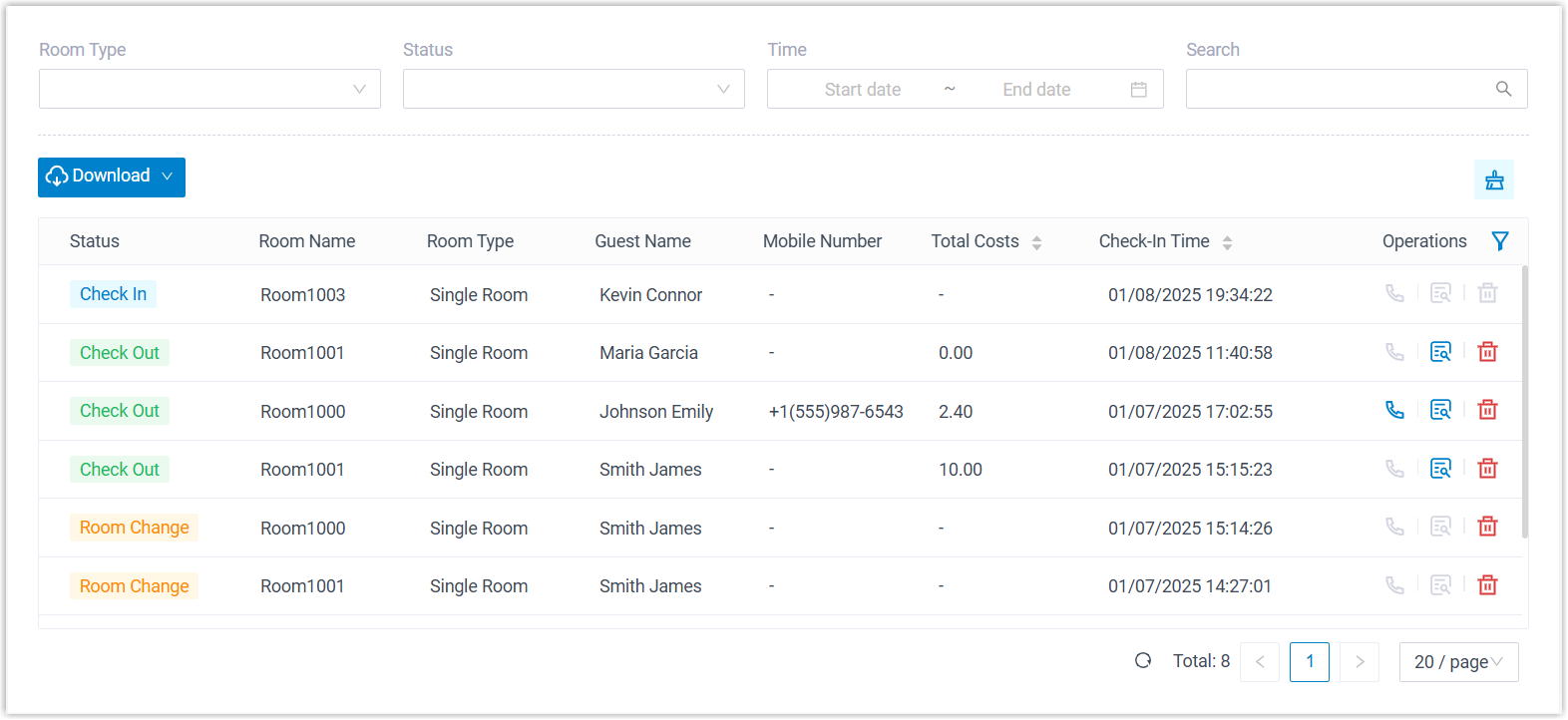
All the guest stay histories are displayed on the list.
Download guest stay history
- Download all guest stay histories
-
-
Log in to Cloud Voice App Desktop/Web Client, go to .
- Click Download, then select
Download All Data.
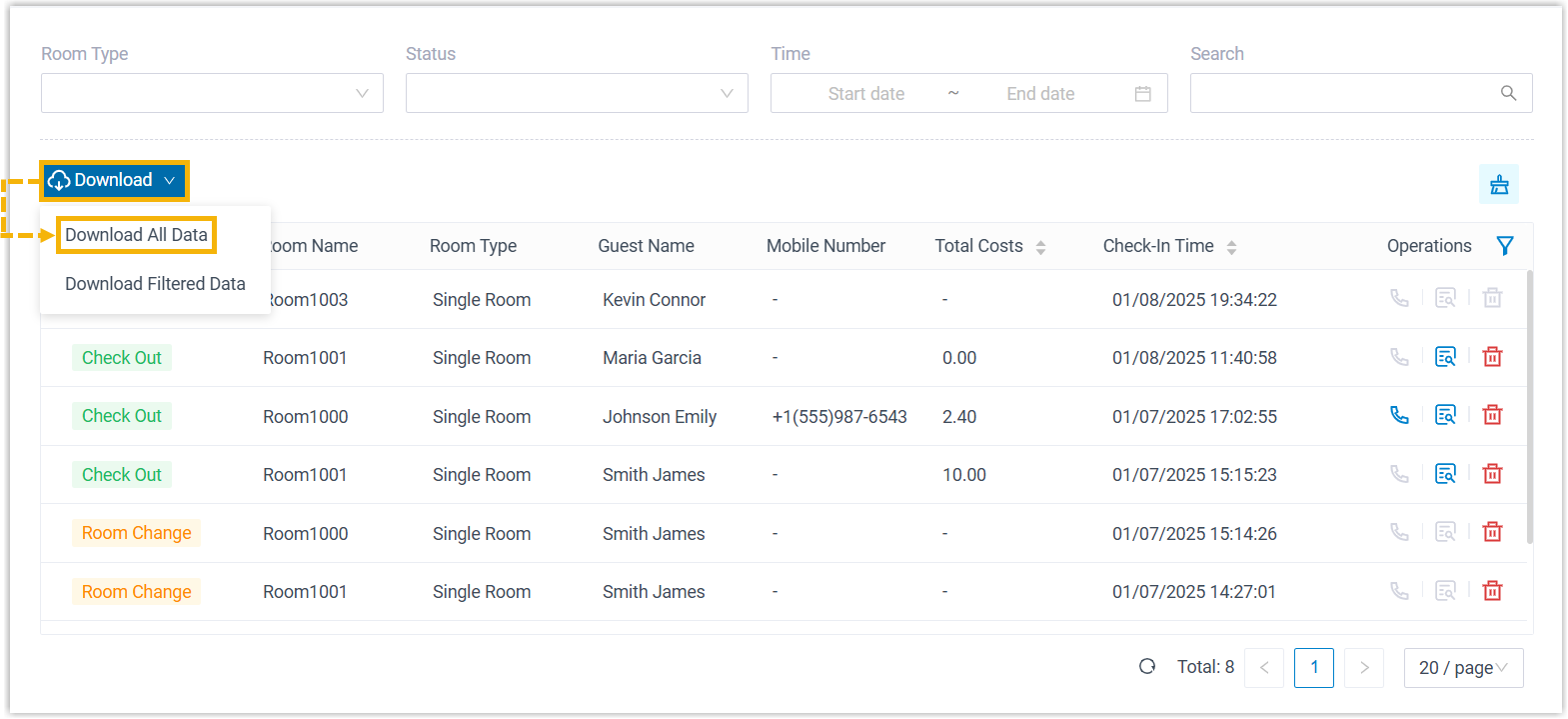
All guest stay histories will be downloaded to your computer as a
.csvfile.
-
- Download specific guest stay histories
-
-
Log in to Cloud Voice App Desktop/Web Client, go to .
- Filter out the desired guest stay histories.
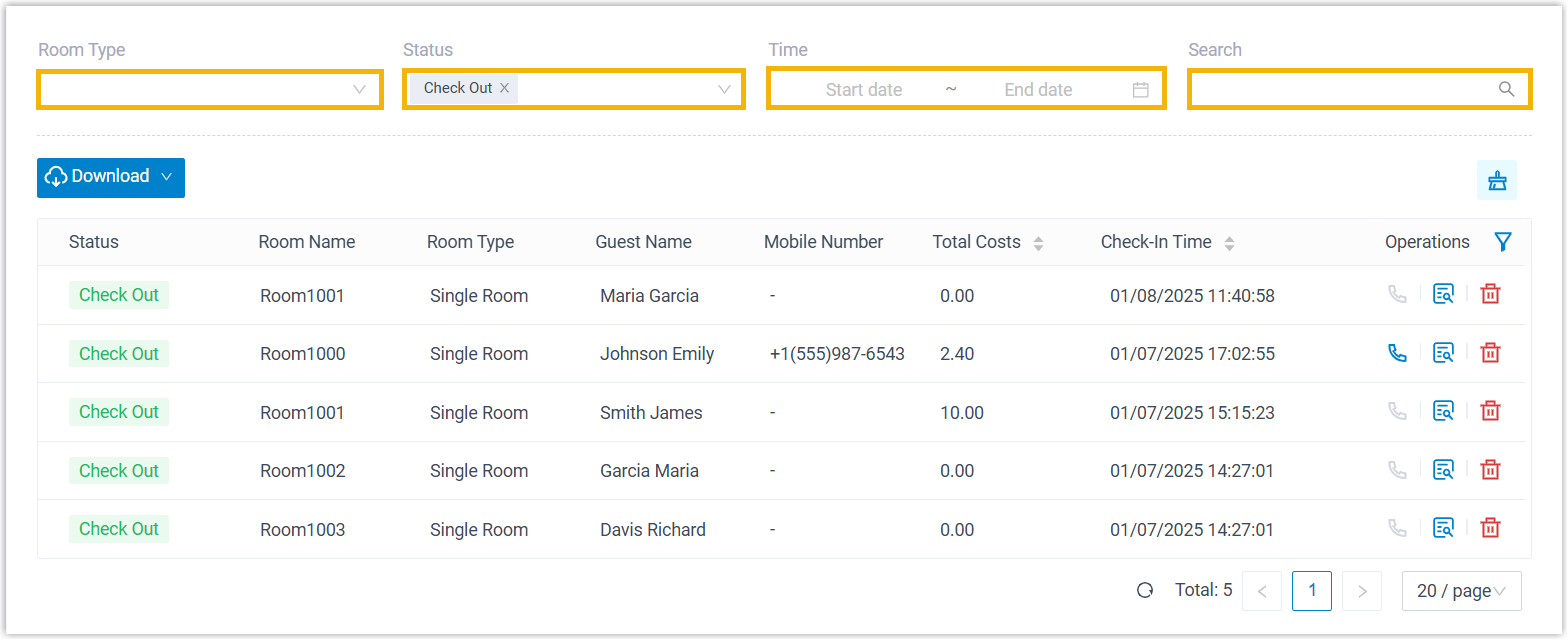
- Click Download, then select
Download Filtered Data.
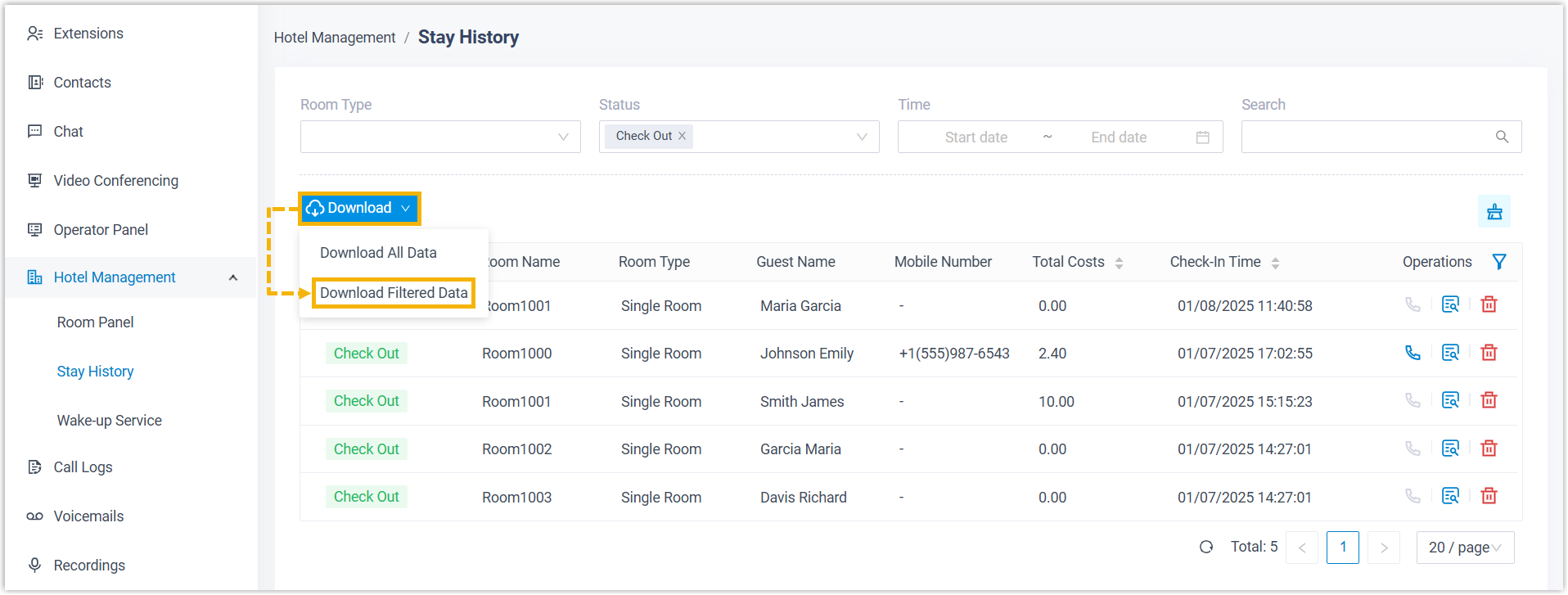
The filtered guest stay histories will be downloaded to your computer as a
.csvfile.
-
Delete guest stay history
- Restriction
- Only guest histories with Check Out or Room Change status can be deleted.
- Procedure
-
-
Log in to Cloud Voice App Desktop/Web Client, go to .
- Delete guest stay histories as needed.
- To delete specific histories, click
 , then click
OK.
, then click
OK.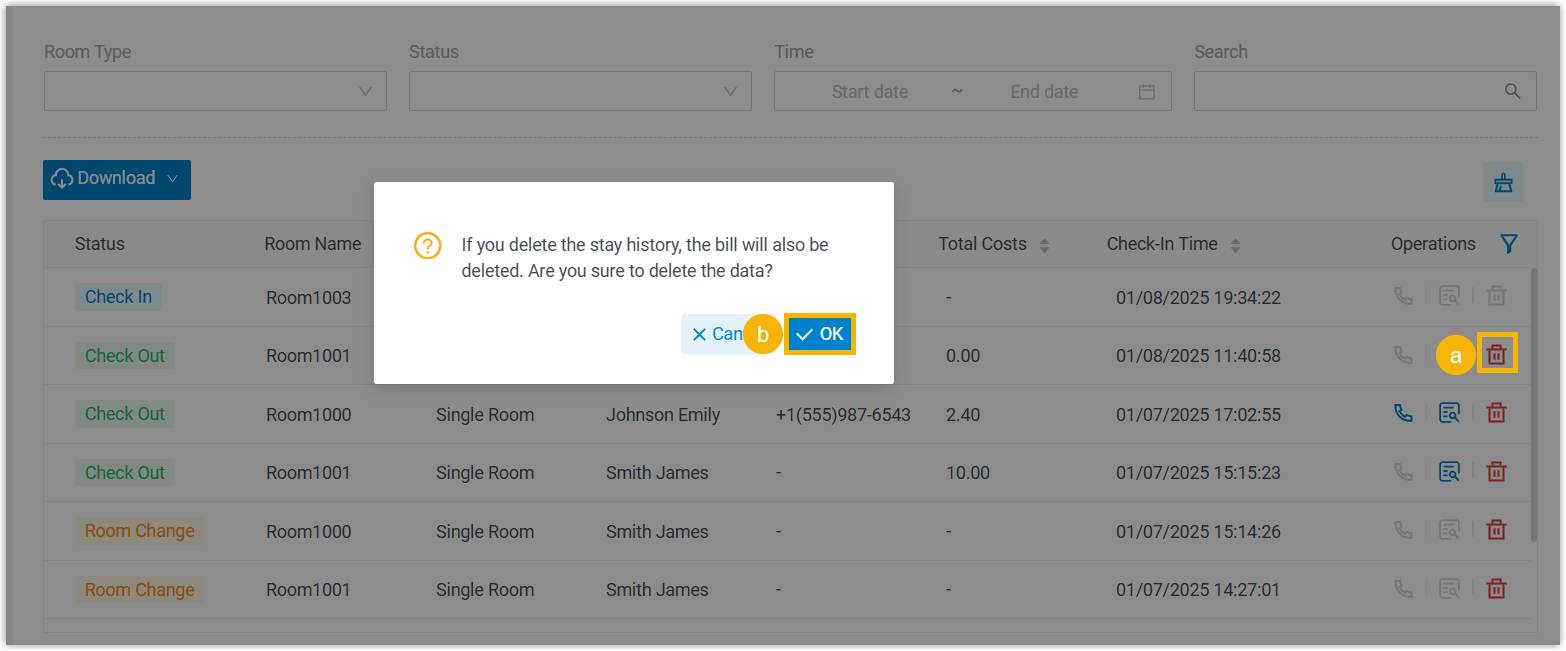
- To delete all histories, click
 , then click
OK.
, then click
OK.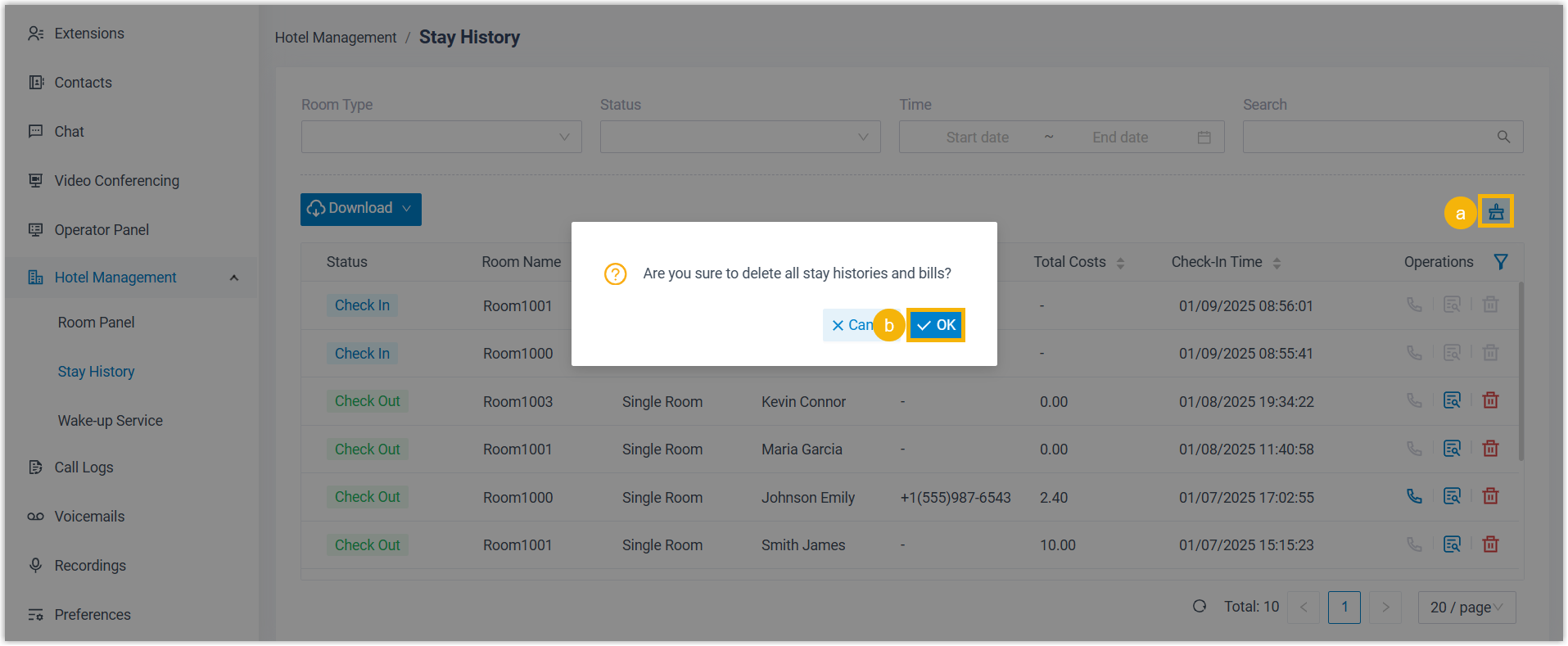
- To delete specific histories, click
-
- Result
- The guest histories as well as the invoices are deleted from the PBX.